Tabs
Tabs are used to allow users to navigate quickly between views within the same context.
Tab Item States
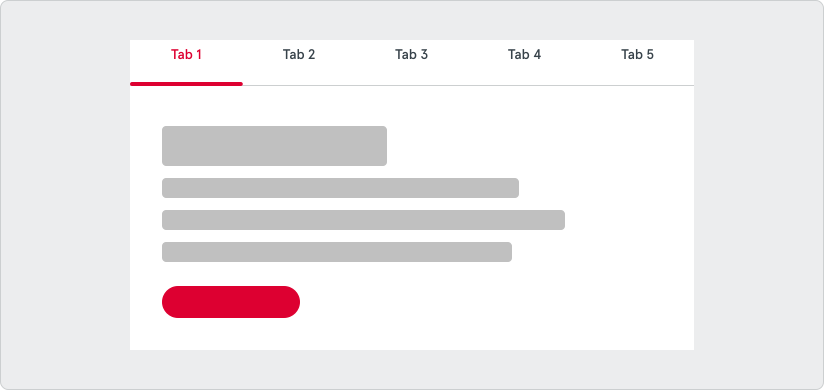
Section titled “Tab Item States”Tab Item states are as follows: Default, Hover, Active, Disable, and Focus.
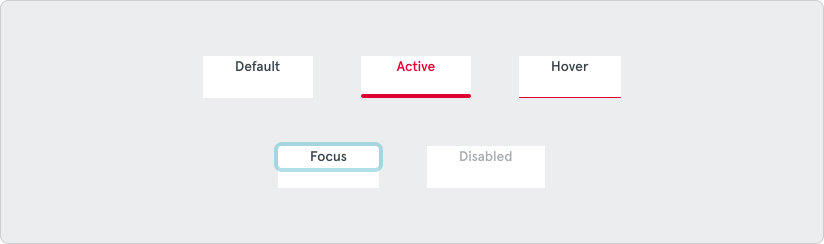
There are two color variants of the tabs component.
Width Variants
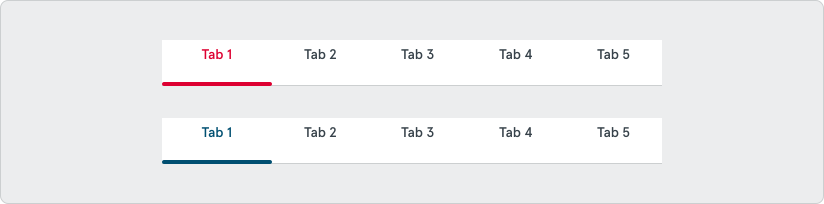
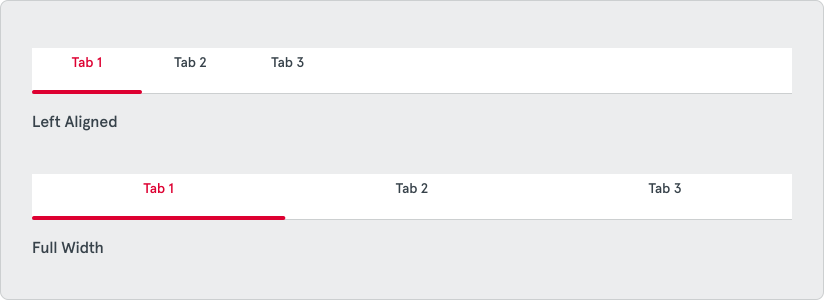
Section titled “Width Variants”The tabs container always stretches the full width of its container. By default each tab item is sized to fit the content of the tab item and the tab items are aligned on the left in the tabs container. Alternatively, you can use the full width option to expand each tab item to fill the available width of the tabs container. Full width tabs are a great option when designing for tablet or mobile devices.
Behaviors
Section titled “Behaviors”Overflow
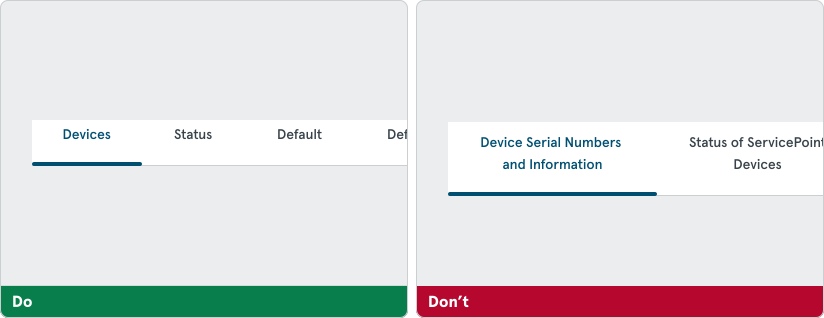
Section titled “Overflow”In most instances, you should use no more than six tabs. This is to ensure that the UI remains organized and will reduce cognitive load for users. If more than six tabs are needed and/or exceeds the width of the viewport, enable the use of a horizontal scrollbar. At smaller breakpoints, the use of horizontal scrolling will be more common.

Tab labels should be short and scannable, usually one or two words, to easily differentiate the different content panes. Labels should never wrap to two lines. At mobile widths or during translation, it’s possible that the character length of a label will impact the experience.
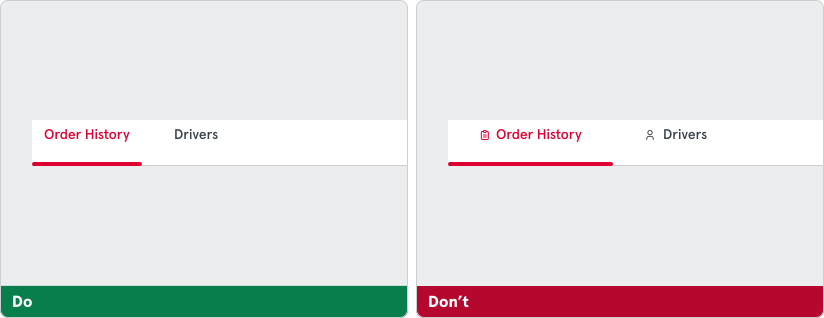
Don’t use icons as they can get too small to recognize.