
Heat Maps
How to use this page
Section titled “How to use this page”All examples and samples on this page serve as a baseline. Start with the styles available here to maintain consistency. You may add additional complexity if needed, but be cognizant of users’ mental load, and use a different visualization if these charts aren’t the best fit.
Heat Maps
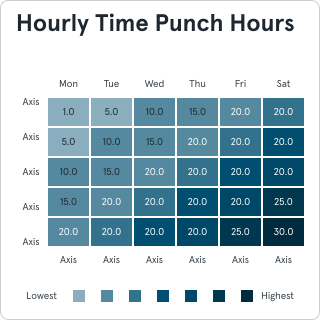
Section titled “Heat Maps”Heat maps use color to represent values, making it easy to spot patterns and outliers at a glance. Colors range from low to high values using either:
- Sequential Palettes: Varying intensity of a single color to show rank.
- Diverging Palettes: Different colors to highlight thresholds (e.g., positive vs. negative).
When to Use Heat Maps
Section titled “When to Use Heat Maps”- To quickly identify high and low values.
- To show distribution patterns across a dataset.
- When precise numerical values are less important than visual trends.
Heat Map Guidelines
Section titled “Heat Map Guidelines”Start with the provided styles for consistency. Add complexity only when necessary, and use a different visualization if heat maps aren’t the best fit.
- Color Selection: Use distinct, meaningful colors that are accessible to all users, including those with color blindness.
- Legend: Include a clear legend to explain the color scale.
- Gridlines: Use subtle gridlines to separate cells without overwhelming the data.
- Labels: Add numeric labels sparingly to avoid clutter.
- Interactivity: In digital formats, add hover states or tooltips for exact values.
Additional Tips
Section titled “Additional Tips”- Use equal intervals for color ranges to ensure clarity.
- Avoid overly bright or harsh colors that distract users.
- Ensure the color gradient aligns with the data’s story (e.g., red for negative, green for positive).
- Limit the number of categories or variables to prevent overcrowding.
General Chart Pitfalls
Section titled “General Chart Pitfalls”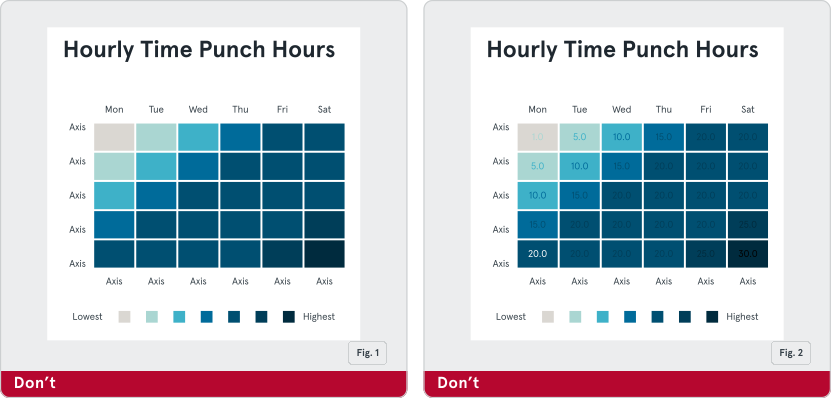
Fig. 1: Do not use color alone to indicate values in heat map cells.
Fig. 2: Do not use low contrast text inside heat map cells. This makes the Heat Map inaccessible for users who may have color blindness or low vision.
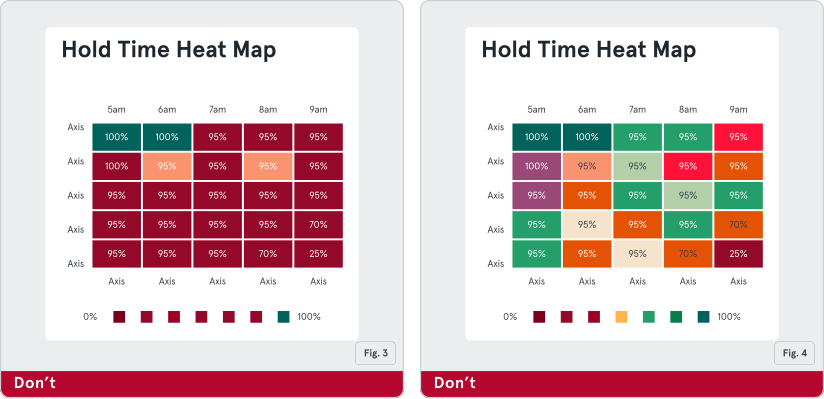
Fig. 3: Do not force your data into a heat map if it’s hard to tell the difference between the values and uncover trends at a glance.
Fig. 4: Do not use too many colors, as it can overwhelm users and obscure patterns.