
Drawer
A drawer presents context-specific information and/or actions without leaving the current page, via a panel that slides in from either the left or right side of the page.
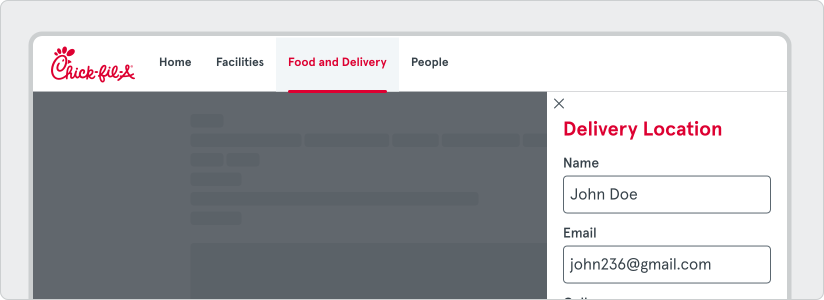
Drawers are supplemental areas primarily utilized on medium to larger displays. They provide a steady space for context-specific actions and information. Usually positioned on the screen’s right side, they function as a temporary workspace for users. Depending on the task at hand, a drawer may use an overlay or be embedded, altering the size of the parent page’s content.
- Showcasing a list of actions impacting the screen’s primary content
- Presenting supplemental content and features.
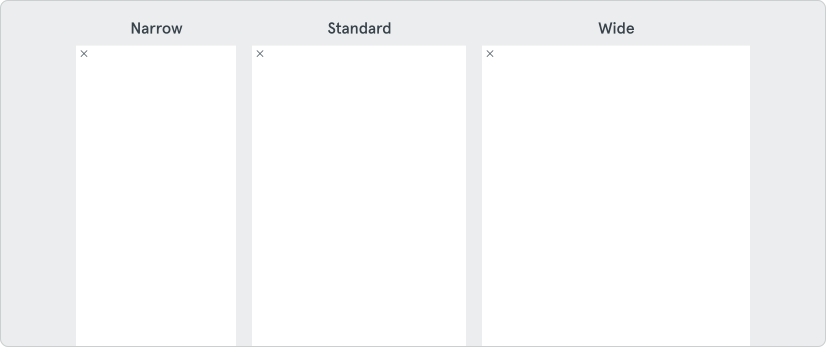
Drawers come in three main sizes: Narrow, Standard, and Wide. These sizes are designed to accommodate different task complexities. Each drawer is fixed in width and typically extends to the full screen height, determined by the app’s layout division into different User Interface regions.
-
Wide - (536px) Wide drawers are often used for more complex tasks. They are especially useful when users need to complete longer forms or engage with detailed interactions. The larger space allows more information to be displayed at once, reducing the need for scrolling or extra navigation.
-
Standard - (428px) The standard drawer size is our go-to choice. This size is a great balance between giving enough space for content and not hogging your screen. It’s great at showing a range of options without overwhelming you. This makes it a solid pick for most applications.
-
Narrow - (320px) Narrow drawers are preferred for simpler tasks. They are commonly used as filter drawers. This compact size is suitable for displaying options without overwhelming the user.
Position
Section titled “Position”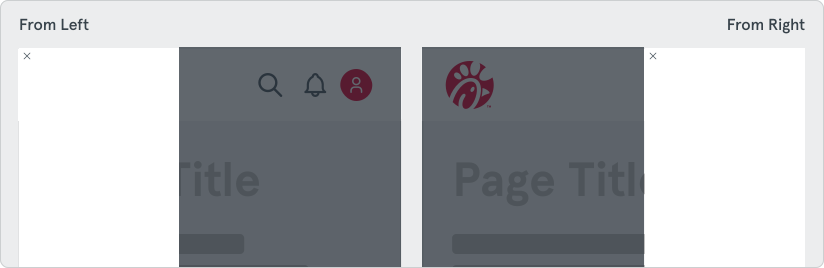
There are 2 options available for the entry position of your Drawer.
- Left - Used when the associated information relates to the left hand side of the page.
- Right (default) - This will cover most use-cases to keep the drawer from covering important information and closest to your mouse pointer for quick access.
Keep it simple
Section titled “Keep it simple”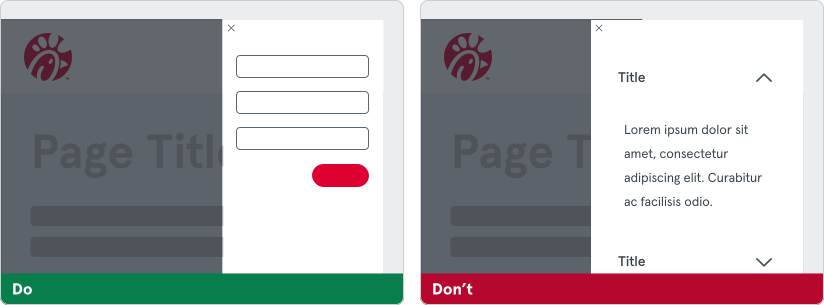
Drawers should be used for quick and simple operations that relate to a quick task in your UI. Avoid overloading too much functionality within the Drawer.
Complexity
Section titled “Complexity”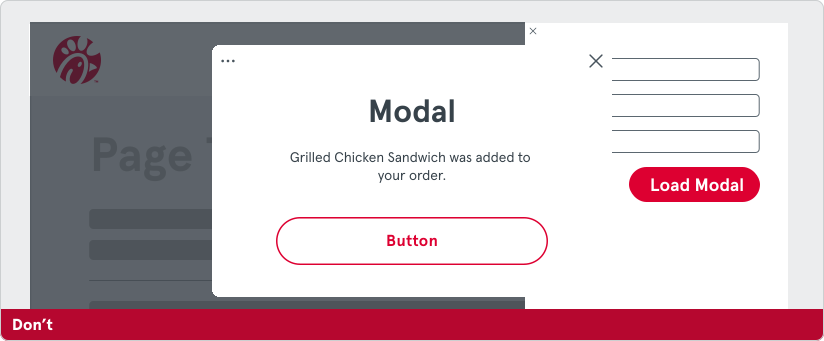
Avoid complex layering by loading Drawers inside Drawers. This same principle could apply to loading modals from Drawers. Complex layering of actions will add confusion to an otherwise simple operation.