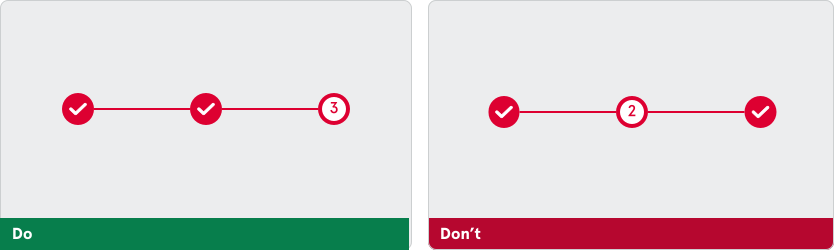
Stepper
Steppers show progress through a sequence of numbered steps. They help users understand their current position in a flow and what remains to be completed. Commonly used in forms, onboarding, and setup processes, steppers are available in horizontal or vertical layouts.
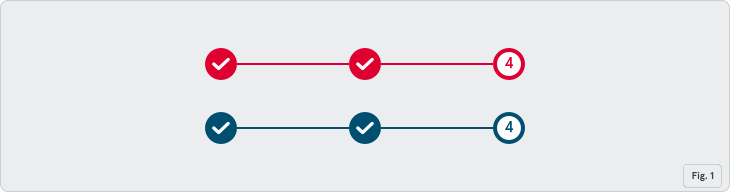
Stepper indicators follow our Foundation tier colors to support recognition and clarity:
-
Primary color: Use for high-priority workflows or actions requiring strong focus.
-
Secondary color: Use for supporting flows or content-driven experiences.
Variants
Section titled “Variants”Horizontal Stepper
Section titled “Horizontal Stepper”The horizontal stepper is the default layout. Steps are arranged left to right and connected by a progress line.
Usage Guidelines
Use when:
- There’s enough horizontal space (e.g., top of full pages or forms).
- You want to keep users focused on linear progression.
Guidance:
- Ideal for onboarding, setup, and multi-step forms.
- Keep step labels short to avoid truncation or wrapping.

Vertical Stepper
Section titled “Vertical Stepper”The vertical stepper stacks steps from top to bottom. It accommodates longer content and works well in narrow containers.
Usage Guidelines
Use when:
- Screen space is limited horizontally (e.g., modals, sidebars, mobile).
- Steps require additional context or descriptions.
Guidance:
- Only one step should be active at a time.
- Completed steps should display a checkmark.
Note: Only one step should be active at a time. Keep completed steps marked clearly with checkmarks. Let me know if you’d like to merge this into the earlier doc in full, or export a clean version for implementation.

Step Icon States
Section titled “Step Icon States”Each step has an icon to communicate its state:
- Active state: Number with stroke circle.
- Completed state: Checkmark with filled circle.
- Upcoming state: Number with muted circle.

Stepper Content
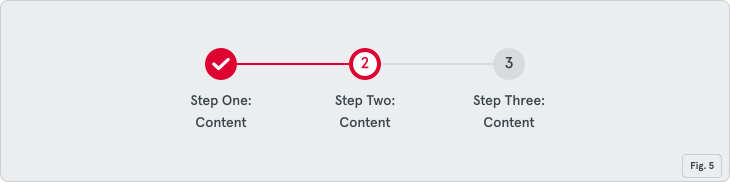
Section titled “Stepper Content”Stepper can also have labels below it, if necessary.
- Default state: Stepper without labels.
- Label state: Stepper with labels.
Accessibility
Section titled “Accessibility”- Use semantic HTML and appropriate ARIA roles.
- Announce step changes using
aria-liveregions. - Ensure color and contrast meet accessibility standards.
- Maintain a minimum tap target of 44x44px.
- Spacing between steps: 16px
- Icon size: 24px
- Connector line: 2px, matches step state color
- Label: Label Medium
- Tap target: 44x44px minimum
Do’s & Don’ts
Section titled “Do’s & Don’ts”Apply stepper colors consistently across the interface to match the primary action hierarchy. Don’t mix colors in a single flow
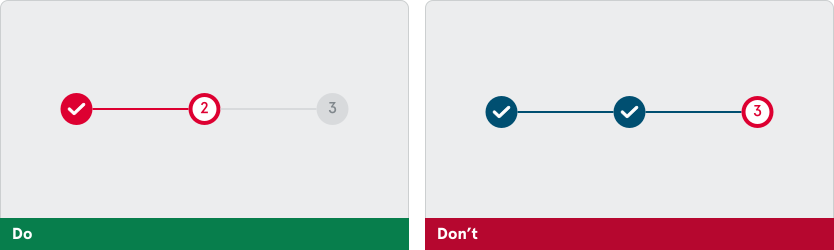
Completed steps should always use the completed checkmark state. Always clearly highlight the current step and mark completed steps with checkmarks.