
Icon Button
An icon-only button lets users take a common and recognizable action where space is limited.
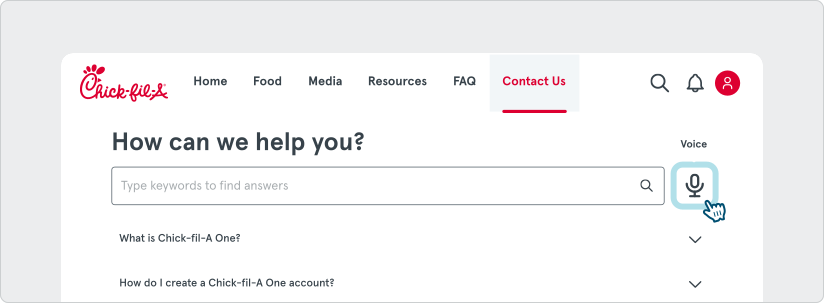
Icon buttons must use a system icon with a clear meaning. On hover, we recommend displaying a tooltip describing the button’s action (not the name of the icon)
Colors
Section titled “Colors”
The Icon Button has several colors:
- default - grey theme color: A neutral option for actions that don’t correspond with product themes or require less emphasis.
- primary - red theme color: Use for the primary actions within Product Theme A, to maintain visual consistency throughout the product’s interface.
- secondary - navy theme color: Applied to primary actions within Product Theme B, ensuring a consistent visual language within this specific theme.
- white - white theme color: Use for actions that should be low-key or when placed on dark backgrounds, complementing either the primary or secondary product themes without overshadowing them.
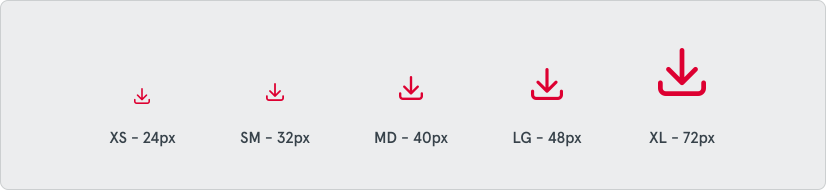
Icon Button comes in five sizes, xs - extra small, sm - small, md - medium, lg - large, and xl - extra large. The dimensions of these buttons vary from 24px by 24px to 72px by 72px, increasing in 8px increments.
- XS - Extra Small (24px): Use in dense UIs where space efficiency is critical, like toolbars.
- SM - Small (32px): For use in tables or lists as secondary actions.
- MD - Medium (40px): The standard size for most use cases and is recommended for new designs by default.
- LG - Large (48px): For major actions on empty states or modals where there is a lot of white space.
- XL - Extra Large (72px): Use sparingly for major actions in prominent spaces, such as dashboards.
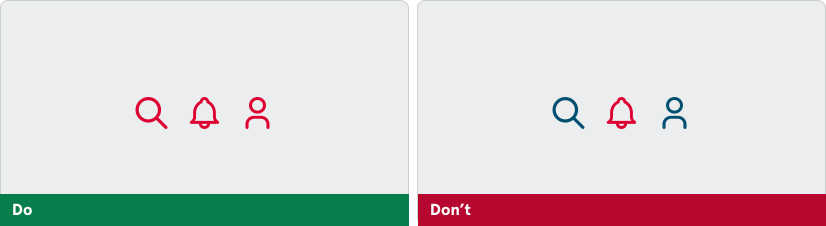
Do choose one color theme. For example, Primary Red and Secondary Blue should not be used interchangably.