
Line Charts
How to use this page
Section titled “How to use this page”All examples and samples on this page serve as a baseline. Start with the styles available here to maintain consistency. You may add additional complexity if needed, but be cognizant of users’ mental load, and use a different visualization if these charts aren’t the best fit.
Line Charts
Section titled “Line Charts”Line charts connect data points in sequence to show trends over time. The x-axis usually represents time, and the y-axis shows values for a metric. They are ideal for tracking changes, such as customer interest in a product, and predicting trends.
Line Charts Help Answer:
Section titled “Line Charts Help Answer:”- What patterns appear over time?
- Is the trend moving up or down?
- Is one category outperforming another?
- Are we on track to meet goals?
Line Chart Guidelines
Section titled “Line Chart Guidelines”Start with the styles here for consistency. Add complexity only when necessary to avoid overloading users.
Choose the type that best fits your data and user needs. If creating new types, follow existing visual standards.
Basic Line Chart
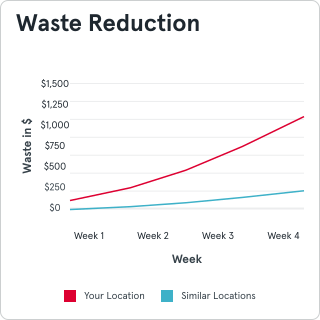
Section titled “Basic Line Chart”Basic line charts display continuous data over time, highlighting trends.
- Data Markers: Use markers to show exact points when needed. Avoid overloading with too many markers.
- Multiple Lines: Differentiate lines with contrasting, colorblind-friendly colors or patterns.
- Axes and Gridlines: Label axes clearly and use minimal gridlines for accuracy without clutter.
- Annotations: Add annotations or tooltips to highlight key points or thresholds.
Stacked Area Chart
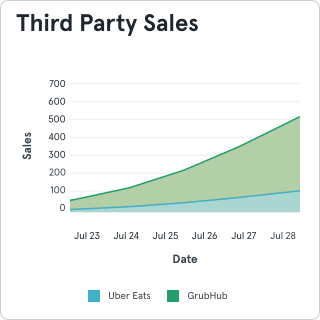
Section titled “Stacked Area Chart”Stacked area charts show changes over time while displaying the total and each group’s contribution.
- Purpose: Use for overall trends and group contributions.
- Group Order: Larger, stable groups go at the bottom; smaller, variable groups go on top.
- Colors: Use distinct, high-contrast colors for clarity.
- Axes and Gridlines: Provide clear labels and gridlines to make stacked values readable.
- Interactivity: Add hover states or tooltips to reveal exact values in digital formats.
Additional Tips
Section titled “Additional Tips”- Legends: Include a legend to explain colors and patterns.
- Scales: Use logical, consistent axis scales.
- Minimalism: Limit data series to avoid clutter.
- Responsiveness: Ensure charts adapt to all screen sizes.
- Focus Points: Highlight trends or outliers with annotations.
General Chart Pitfalls
Section titled “General Chart Pitfalls”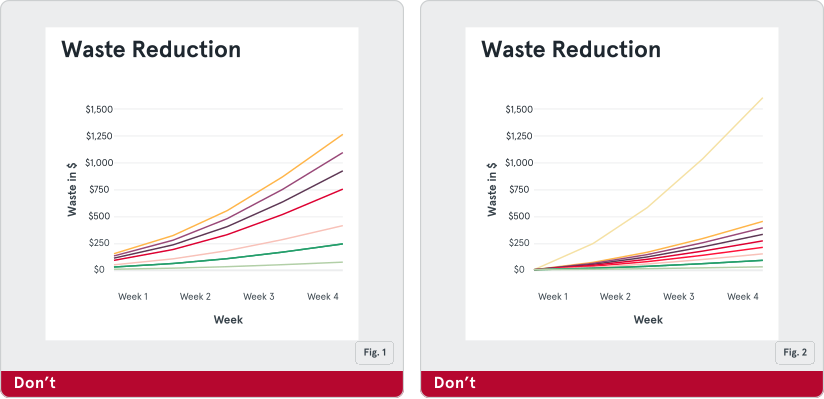
Fig. 1: Do not choose a line chart for data sets with more than five values, or values of different measures. Too many lines or similar colors can confuse users.
Fig. 2: Do not confuse users with an unreadable tangle of too many lines.
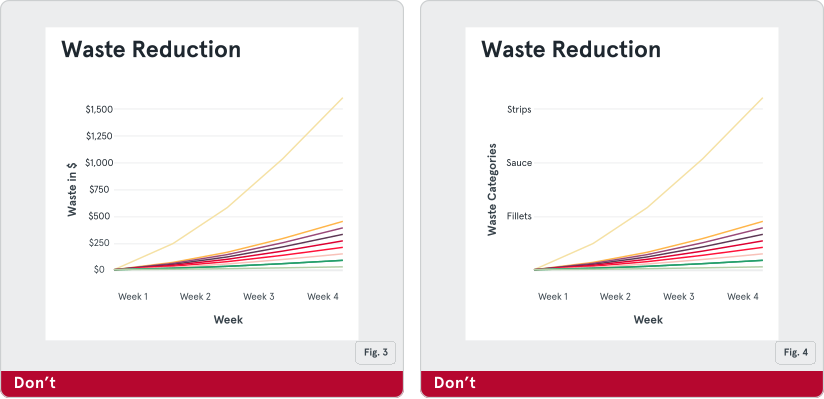
Fig. 3: Do not use a line chart to compare values on vastly different scales.
Fig. 4: Do not use line charts for unordered or categorical data.