
Button
Buttons are clickable elements that are used to trigger actions. They communicate calls to action to the user and allow users to interact with pages in a variety of ways. Button labels express what action will occur when the user interacts with it.
These two colors serve as a foundation for our visual design, creating a unique identity that is instantly recognizable to our users. So, when deciding on color schemes for your design, consider the application’s purpose, the emotions you want to evoke, and choose colors that can consistently represent these factors.

Do’s & Don’ts
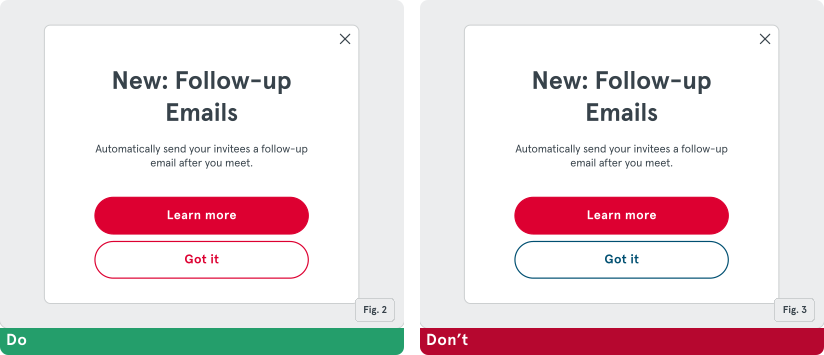
Section titled “Do’s & Don’ts”Do: Apply the same color theme consistently across the interface to ensure a cohesive and harmonious user experience — as shown in Fig. 2.
Don’t: Mix color themes as it can create dissonance. For instance, don’t pair a primary red button with a secondary navy one, as shown in Fig. 3, as it disrupts the visual flow and can be jarring for the user.
We understand the challenges in choosing the correct colors and styles for non-primary designs in your applications. To assist with this, we offer variants. These are alternative styles for buttons representing primary, secondary and destructive actions.
Variants
Section titled “Variants”Fill Variant
Section titled “Fill Variant”The Fill variant can be compared to a spotlight on a stage - it’s intended to emphasize the most important, primary action in your interface.
Usage Guidelines
Section titled “Usage Guidelines”It’s recommended to limit the interface to one Fill Button variant per screen to underscore its significance. When presented in a group, the Fill Style button should be positioned prominently — at the top in vertical alignments — as shown in Figure 1 — or at the far right in horizontal layouts. In cases where multiple actions compete for priority, the decision on where to apply Fill Style rests with the product owner, based on strategic importance.
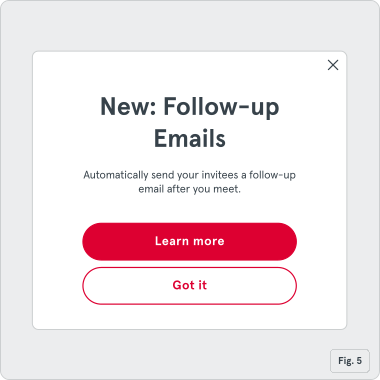
Note: The Fill variant is visually distinct and more pronounced than other button styles and draws immediate attention.
Outline Button
Section titled “Outline Button”The Outline variant is intended for actions of lesser importance compared to the primary action, offering an alternative without overpowering the primary option.
Usage Guidelines
Section titled “Usage Guidelines”Employed for functions that support but do not replace the primary action on a page. Allows for the presence of multiple actions within a set or page without overwhelming the user. Particularly effective for actions repeated across the page, such as in product cards or lists.
Note: The Text variant should maintain a balance — noticeable yet subordinate to the Fill Style.
Text Button
Section titled “Text Button”The Text variant is designed for actions that require the least emphasis, acting in secondary or tertiary roles within the user interface. These buttons are typically employed for less critical actions where the visual weight of a Fill or Outline button is not warranted.
Usage Guidelines
Section titled “Usage Guidelines”Text buttons are best used for actions such as ‘Go back or ‘Show More/Less’ which, while necessary, do not command primary attention. They are ideal for singular actions within a context, such as ‘cancel’, ‘remove’, ‘undo’, or for navigating through a multi-step process. Text buttons can be effectively used to introduce new elements on a page without drawing undue attention, like adding a new row to a table. Due to their subdued presence, they help maintain a clean and uncluttered interface, ensuring that the primary and secondary actions are not overshadowed.
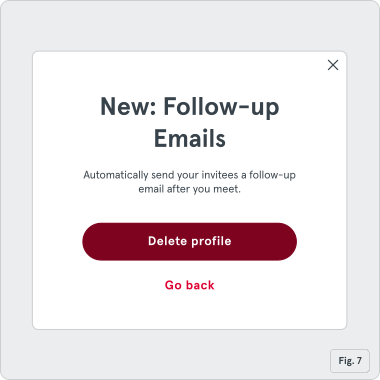
Destructive Button
Section titled “Destructive Button”The Destructive variant is specifically reserved for actions that have significant consequences, such as the deletion of data or the removal of user-generated content. This style is designed to attract attention in a manner that prompts the user to pause and consider the action due to its potential irreversible effects.
Usage Guidelines
Section titled “Usage Guidelines”Destructive buttons should be used sparingly and only for actions that could lead to data loss or other irreversible changes. It is crucial to provide clear, explicit labeling for destructive buttons to ensure users understand the action they are about to take. Phrases like ‘Delete Account’ or ‘Remove Project’ are direct and leave no room for ambiguity. Incorporate additional safeguards, such as confirmation dialogs, to prevent accidental activations. These dialogs should reiterate the consequences of the action, offering users one last chance to cancel their decision.
Note: The Destructive variant should maintain a balance — noticeable yet subordinate to the Fill Style.
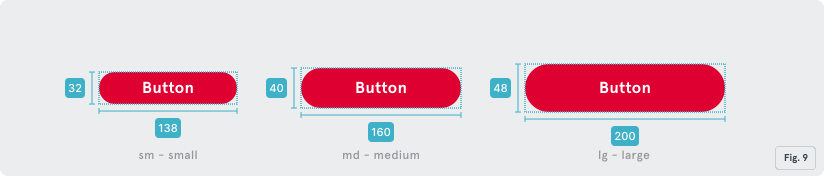
In order to accommodate different design needs and adapt to various screen sizes, buttons are made available in three distinct sizes:
- Large (lg): 200 x 48 pixels, large buttons are perfect for designs where visibility and prominence are required.
- Medium (md): 160 x 40 pixels, offer a balanced size that is suitable for most standard interfaces.
- Small (sm): 138 x 32 pixels, are ideal for compact spaces or when multiple buttons need to be displayed together without overwhelming the design.
Note: The ‘Size’ property primarily changes the button’s height. Buttons can also be made responsive and take up the full width of a container by using the fullWidth prop. This ensures consistent width across different sizes, leading to a uniform and harmonious interface.
Leading Icon
Section titled “Leading Icon”
Buttons can have a leading icon to provide users with more visual context. This aids in their understanding and interaction with the interface.
Behavior & States
Section titled “Behavior & States”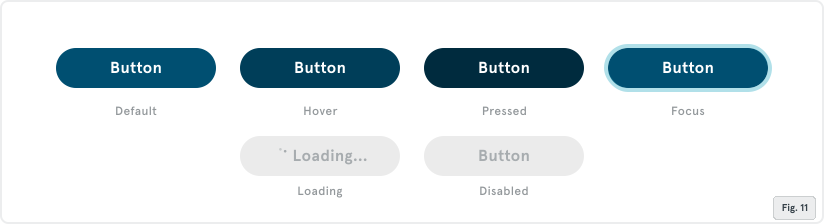
- Hover: Activated when a cursor is over the button.
- Pressed: Indicates the button is being clicked or tapped.
- Focus: Highlights the button for keyboard navigation, crucial for accessibility.
- Loading: Shows an ongoing process post-action initiation, often with a spinner or progress bar.
- Disabled: Represents an unavailable action, typically dimmed or in a lighter shade.